When I’m halfway through an edit, finding a shot or a music bed can pull me away from the story. A few browser tabs turn into a long search. I want Smoothy to be the place where I can find what I need, try it, and get back to cutting.
That’s the idea behind Stock Footage and Audio Library in SmoothyApp 1.5.1. They bring media discovery into the same app as captions, camera cuts, silence removal, compression and graphics. Your favorite music stays close, and Staff picks give you a starting point when you don’t want to listen to hundreds of tracks.
Mac 1.5.1 is available now, signed and notarized for Apple Silicon. Windows remains on 1.5.0 while its update is being built. You can explore the new library page or try the updated SmoothyApp mockup. The website preview uses sample media; playback, downloads and Premiere imports happen in the desktop app.
Stock footage from multiple sources
Open Stock Footage and search for the shot your edit needs. All sources searches Pixabay, Wikimedia Commons, Internet Archive and NASA together. You can also choose one source when you know where you want to look.
Preview a clip inside Smoothy before downloading it. Check its available resolution and use orientation and minimum-quality filters where the source provides that information. Save an MP4 or choose Send to Premiere to bring the saved file into your Project panel.
The sources cover different kinds of footage: royalty-free clips from Pixabay, explicitly marked CC0 or public-domain videos from Commons, publisher-declared CC0 or public-domain stock and Prelinger material from Internet Archive, and Earth, space and science media from NASA.
Each clip keeps its source link and usage notes. Pixabay has its own Content License, and NASA asks you to acknowledge it as the source and follow its media guidelines. Check the clip’s terms and any other rights that matter to your project.
Music made by artists, inside your editing workspace
Audio Library brings a YouTube Audio Library archive into Smoothy. Browse music by title or artist, and narrow your search by genre and mood. Artist names appear where matched metadata is available, so you can come back to people whose music fits your work.
One player stays below the scrolling library. You can preview a track, seek to another part, adjust the volume and keep browsing. Save an MP3 when you find the right one, or send it to Premiere’s Project panel.
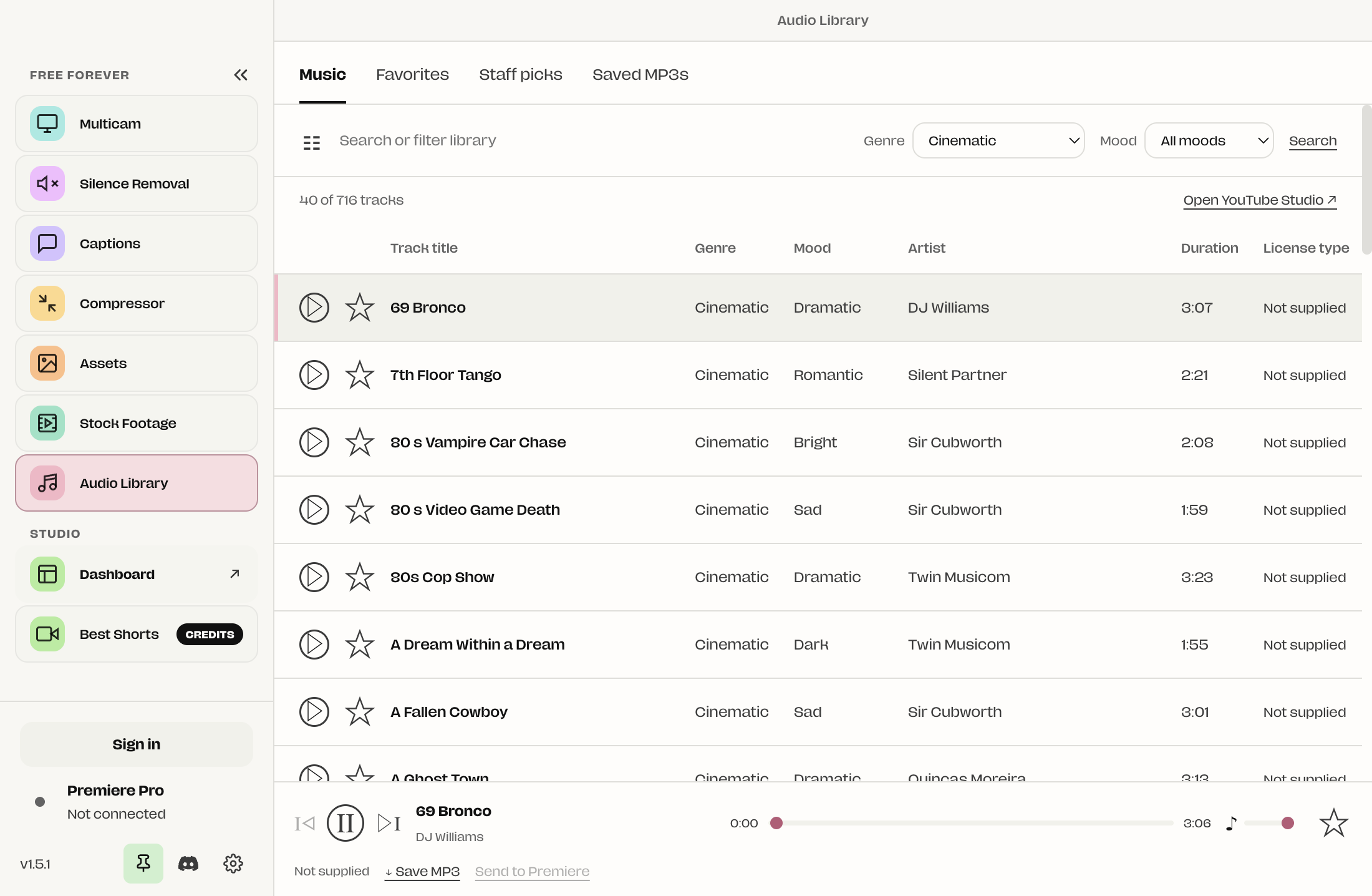
The screenshot shows the 1.5.1 development interface included in this release.
Favorites and Staff picks shorten the search
Some music becomes part of your editing vocabulary. Star a track and it stays in Favorites, ready for the next project. You can also keep downloaded tracks in Saved MP3s and return to their credits and license details.
Staff picks is a separate view for music selected by the SmoothyEdit team. It gives us a way to curate a smaller collection as we find tracks worth recommending. You can start there, hear a few options and choose what works for your edit. Picks are selected by the team; a high favorite count doesn’t automatically make a track a Staff pick.
Your stars work locally. Optional anonymous favorite sharing helps inform curation, and you can turn sharing off while continuing to keep your own favorites.
Check the music license before publishing
The current catalog is an unofficial 2020 archive, not a live connection to YouTube Studio. It does not provide verified track licenses, and SmoothyEdit is independent of YouTube and Google.
YouTube’s official Audio Library offers royalty-free music. Standard-license tracks can be used without attribution, while Creative Commons tracks require the specified artist credit. The archive alone cannot establish which permission applies to a particular file.
Use Open YouTube Studio and check the track there before publishing. You can find the Attribution not required filter and credit instructions in YouTube’s Audio Library guidance. Smoothy’s Licenses & credits view keeps supplied information visible and marks missing licenses as not supplied.
The Multicam update
The 1.5.1 Multicam workflow duplicates your original Premiere timeline and works with source clips and nested sequences. Camera cuts are applied to the duplicate, with both speakers’ audio kept continuous. Start from your original timeline and review the result before finishing the edit.
The 1.5.1 release cuts and moves the existing video clips, keeping linked microphone audio continuous and preserving effects on those clip instances. The chosen camera stays on the top selected track and the reverse angle remains visible and selectable underneath for fine-tuning. Nested sequence contents remain shared references, so later edits inside a nest affect both sequences.
Multicam update
Multicam wasn’t working correctly in the previous update. It should now work correctly in 1.5.1 — I hope. If it doesn’t, message me on Discord or my socials: X / Instagram. Sorry for that.
Multicam now supports source clips and nested sequences. Start from your original timeline. Review both speakers and audio sync before using the result.
The Mac 1.5.1 release includes this fix. The same dismissible notice appears on the homepage, SmoothyApp page and Multicam page.
Find it, preview it, bring it into Premiere
The new libraries import MP4 and MP3 files into Premiere’s Project panel. From there, place them on your timeline where they belong. The import does not automatically place footage or music at the playhead. You can also save the files to use in another editor.
Stock Footage and Audio Library are free tools included in the official Mac 1.5.1 build, with no SmoothyEdit account or Studio subscription required. Online search, previews and downloads need an internet connection. Premiere import needs the bundled SmoothyEdit panel and an open project.
The goal is simple: keep more of what you need during an edit in one place, so your attention stays on the story. Explore Stock Footage & Audio Library, try the workspace preview, or see the changelog.